Channels
Channels are where you talk to the agent. The desktop app has a chat built in, and you can connect the agent to the messaging tools you already use. It's one agent with one memory across all of them — what you tell it on WhatsApp is the same context it has in Slack.
Open the Channels screen in the app to connect a channel and see what's currently connected.
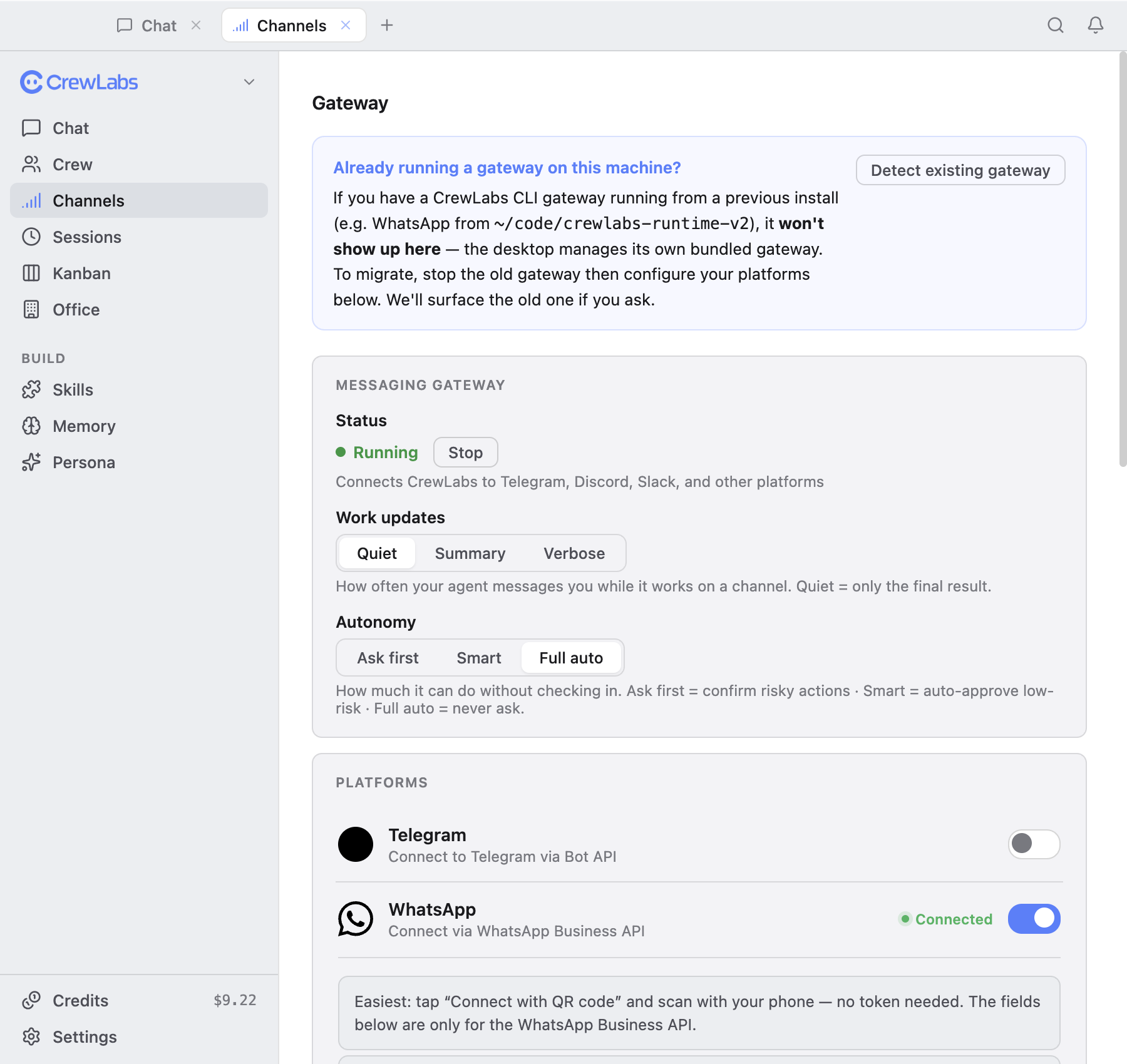
The desktop app
The built-in chat is always on, no setup needed. It's the fastest way to use the agent and the place to start. See Get Started.
WhatsApp
Connect WhatsApp by scanning a QR code with your own number — the same way you'd link WhatsApp on a new device. No WhatsApp Business API, no separate business number. Open the WhatsApp option on the Channels screen, scan the code, and the agent is reachable on your number.
Slack
Slack connects with one click. Authorize the CrewLabs app for your workspace through Slack's standard OAuth flow, and the agent shows up where you can message it.
Telegram
Telegram uses a bot token. Create a bot with @BotFather in Telegram, copy the token it gives you, and paste it into the Telegram option on the Channels screen.
More channels
The agent supports more channels than the four above — Discord, Email, SMS, Signal, and others. They appear on the Channels screen as they're available in the app.
Sending across channels
The agent isn't limited to replying on the channel you messaged from. Because it's one agent across all your channels, you can ask it on one and have it act on another — for example, message it on WhatsApp and tell it to post the result in Slack. You connect the channels once; the agent moves between them.
Per-channel detail
For deeper reference on a specific platform — message formatting, media handling, and platform-specific behavior — see the integration docs:
Those pages document the self-hosted runtime's configuration. In the managed desktop app you connect channels from the Channels screen as described above — but the platform behavior carries over.